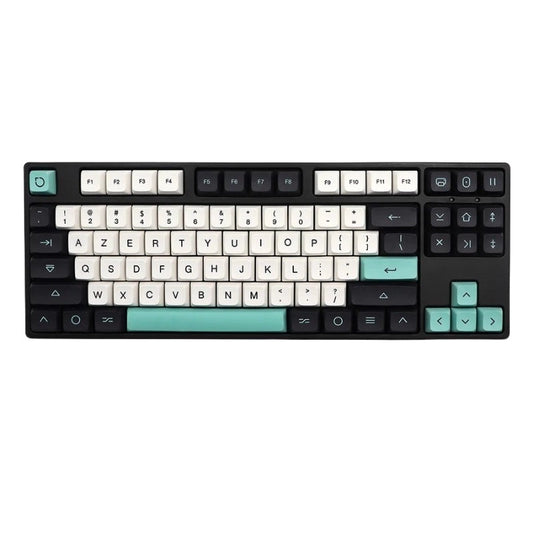
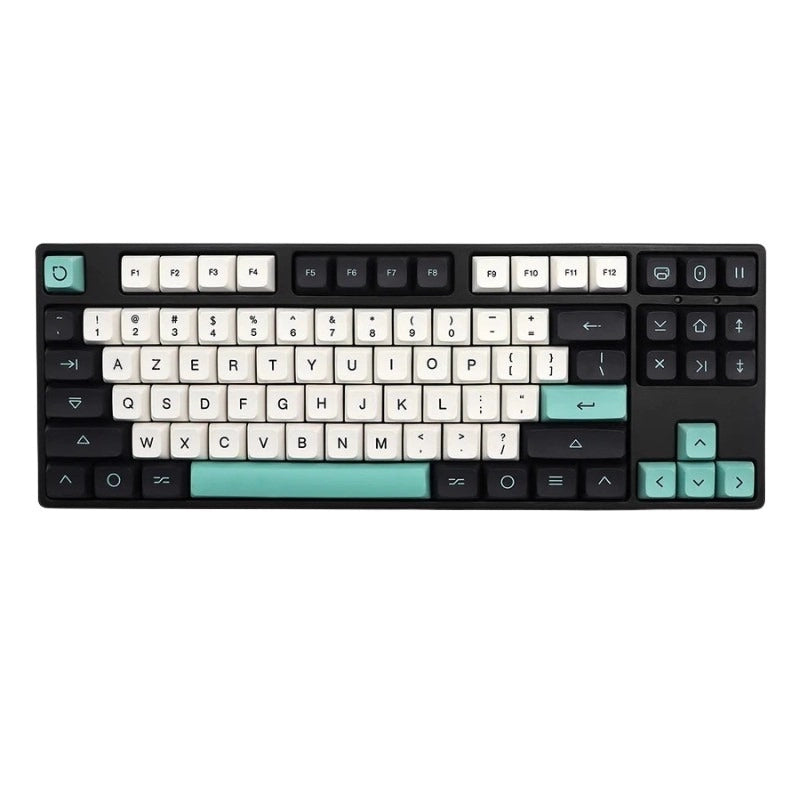
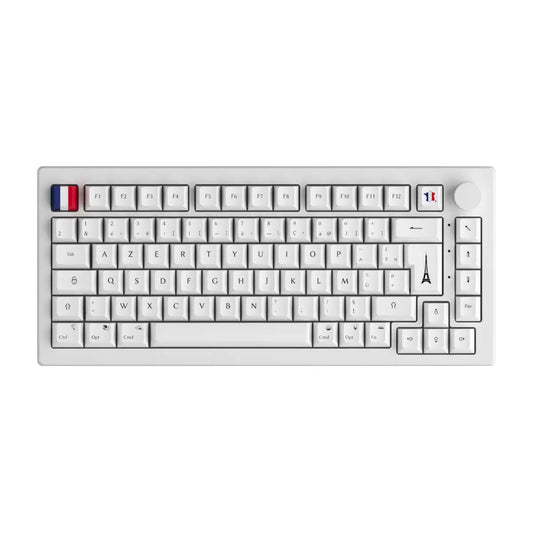
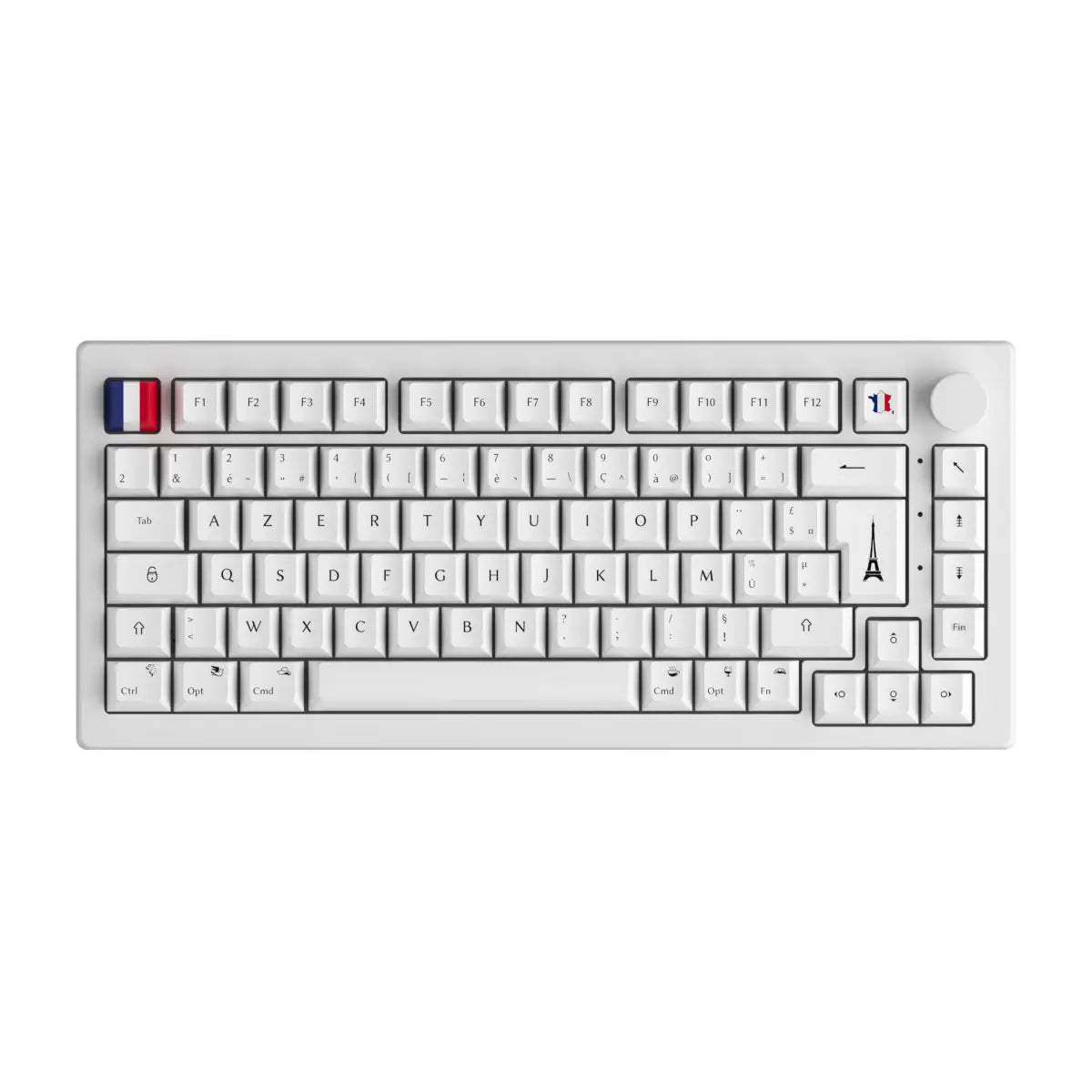

Windows provides more than 220 Alt codes to insert special characters directly from your symbol on the keyboard. However, the vast majority of users only know 2 or 3 of them. This guide brings together the most effective methods for inserting any symbol quickly, whether you are on Windows, Mac or an AZERTY keyboard.
How to insert a symbol on the keyboard?
There are three main ways to insert a symbol from your keyboard:
- **Alt codes**: hold down the Alt key and enter a numeric code on the numeric keypad (Windows only)
- **Native shortcuts**: key combinations specific to each system (AltGr, Option, Win+.)
- **The character table**: graphical tool (CharMap on Windows, Special Characters on Mac) which lists all the available symbols
Each method has its advantages. Alt codes are the fastest once memorized. Native shortcuts cover everyday needs. The character map is useful for rare symbols.
Alt codes: the complete guide
The Alt code method works on Windows with a keyboard with a numeric keypad. Hold down the Alt key, type the multi-digit code on the number pad (not the keys at the top of the keyboard), and then release Alt. The symbol is inserted automatically.
| Alt Code | Symbol | Description |
|---|---|---|
| Alt + 64 | @ | At |
| Alt + 35 | # | Pound |
| Alt + 38 | & | Ampersand (and commercial) |
| Alt + 169 | © | Copyright |
| Alt + 0128 | € | Euro |
| Alt + 0176 | ° | Degree |
| Alt + 0153 | ™ | Registered trademark |
| Alt + 0174 | ® | Registered trademark |
| Alt + 0163 | £ | Pound sterling |
| Alt + 0165 | ¥ | Japanese Yen |
| Alt + 0189 | ½ | Fraction one-half |
| Alt + 0188 | ¼ | Fraction a quarter |
| Alt + 0190 | ¾ | Fraction three-quarters |
| Alt + 0215 | × | Multiplication sign |
| Alt + 0247 | ÷ | Division sign |
| Alt + 0177 | ± | More or less |
| Alt + 0186 | º | Male ordinal indicator |
| Alt + 0185 | ¹ | Superscript 1 |
| Alt + 0178 | ² | Superscript 2 |
| Alt + 0179 | ³ | Superscript 3 |
Takeaways for Alt Codes:
- The numeric keypad must be activated (Num Lock key lit)
- 4-digit codes starting with 0 use the extended ASCII table
- On keyboards without a numeric keypad (laptop), the method may not work
For mechanical keyboards, find our selection of Mechanical Keyboards with or without integrated numeric keypad according to your needs.
Insert symbols on Windows
Windows offers three complementary methods depending on your situation.
CharMap (Windows Character Map)
Type "Character table" in Windows search. The tool lists all available Unicode characters, with their corresponding Alt code. Double-click a symbol to copy it.
Win + . (emoji and symbols)
Since Windows 10, the shortcut Win + . (period) opens a Quick Insert panel. It contains emojis, GIFs and a "Symbols" section with the most common special characters. This method does not